
Bildirt CMP works without requiring any plugin. The setup is completed by adding a single script code obtained from the dashboard to your website.
1) Standard Installation (Recommended)
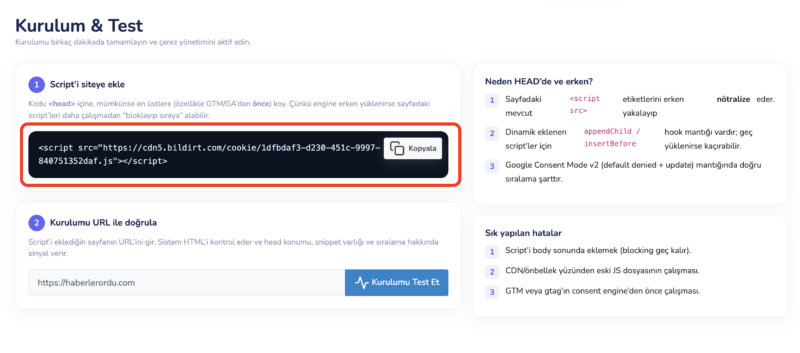
The simplest and recommended method is to add the Bildirt CMP script to the head section of your website.
- Copy the installation script from the dashboard.
- Add it inside the head so it loads on all pages.
- The banner will automatically start working and collect consent.
2) Installation on WordPress
Since there is no dedicated plugin for WordPress, installation can be done using the following methods:
Method A: Add to Theme File
You can add the script code to your theme’s header.php file just before the closing head tag.
- Go to Appearance > Theme File Editor
- Open the header.php file
- Add the script before the closing head tag
Method B: Header/Footer Script Tool
If your theme or system provides a section to add code to the header, you can place the script there.
- Find the Header Scripts section in theme settings
- Add the script
- Save and check the frontend
3) Using with Google Tag Manager (GTM)
Bildirt CMP works without GTM. However, if you are using GTM on your site, you can still add the Bildirt CMP script to your website and configure GTM tags to trigger based on consent status.
Important: There is currently no ready-made tag template for Bildirt CMP in the GTM Template Gallery. The setup in GTM should be configured to control existing tags based on consent conditions.
- Bildirt CMP script is added to the site
- User consent is collected via the banner
- GTM tag triggers are configured based on consent status
4) Script Management
The most critical part of integration is ensuring that third-party scripts (Analytics, Ads, etc.) run according to user consent. In Bildirt CMP, script behavior is controlled based on consent status.
- Analytics scripts run only after the user grants Analytics consent.
- Ads / marketing scripts run only after the user grants Marketing consent.
- If there is no consent, scripts are blocked or not triggered.
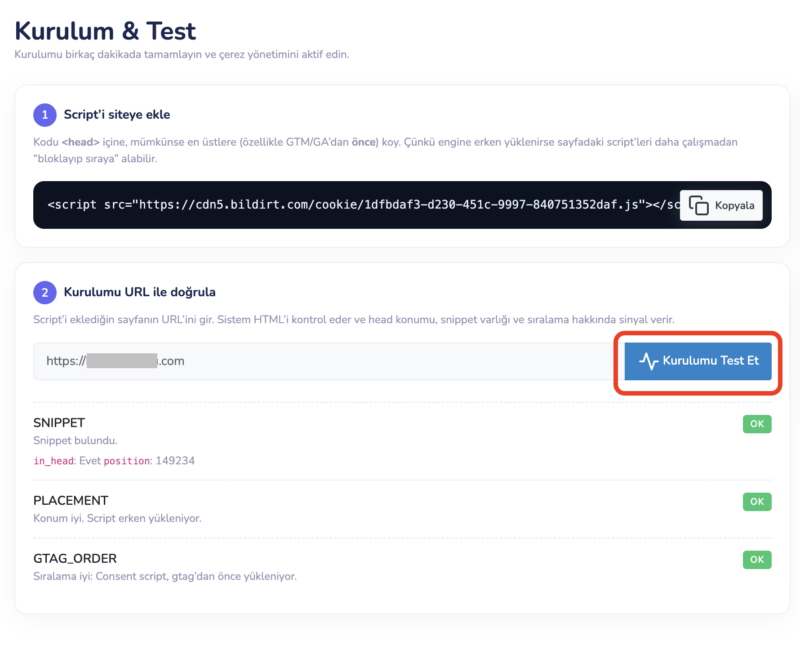
5) Installation Verification
To verify that the installation is working correctly:
- Check that the banner appears on your website.
- Verify that user preferences are saved after selection.
- Check that consent logs are being created.
- Test that scripts are not triggered before consent is given.
Common Issues
- The script loading only on certain pages
- Old code running due to cache
- Third-party scripts being added directly without consent control
- GTM tags triggering without consent conditions
In such cases, review the Errors & Status Codes page.