
You can easily send your push notifications through the Bildirt dashboard using multiple methods. In this section, we cover all available notification delivery options and the differences between them.
All notification sending operations are performed عبر the dashboard of the selected application.
Accessing the Notification Sending Screen
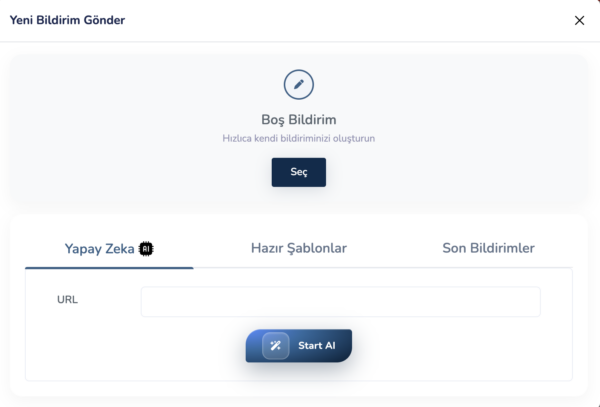
To send a notification, you must first enter the relevant application from the dashboard. On the application screen, click the Send New Notification button located at the top.
When you click this button, four different sending options are presented:
- Manual notification creation
- AI Recommendation Engine
- Templates
- Recently Sent Notifications
Manual Notification Sending
Manual notification sending is the classic method where all fields are filled in by the user.
To use this method:
- Click the Send New Notification button
- Select Create Manual Notification
- Continue with Blank Notification
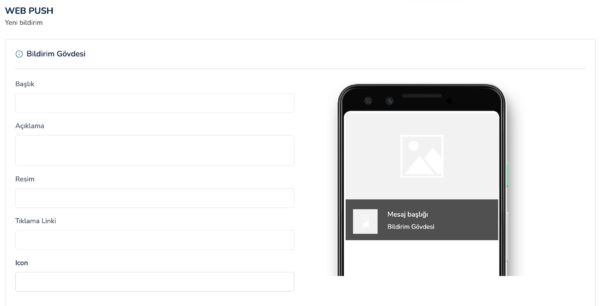
On the screen that opens, you can fill in the following fields:
- Notification title
- Notification description
- Redirect URL
- Optional image and icon
Additionally, on this screen you can configure:
- Notification scheduling
- Bulk sending settings
After completing the settings and sending the notification, you will automatically be redirected to the Notification Analytics screen.
Notification Analytics Screen
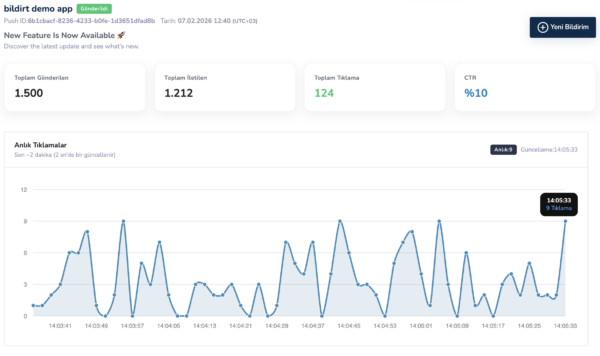
After sending the notification, you can monitor the performance of your notification in real-time on the analytics screen.
- Number of notifications sent
- Number of clicks
- Engagement rates
Sending Notifications with the AI Recommendation Engine
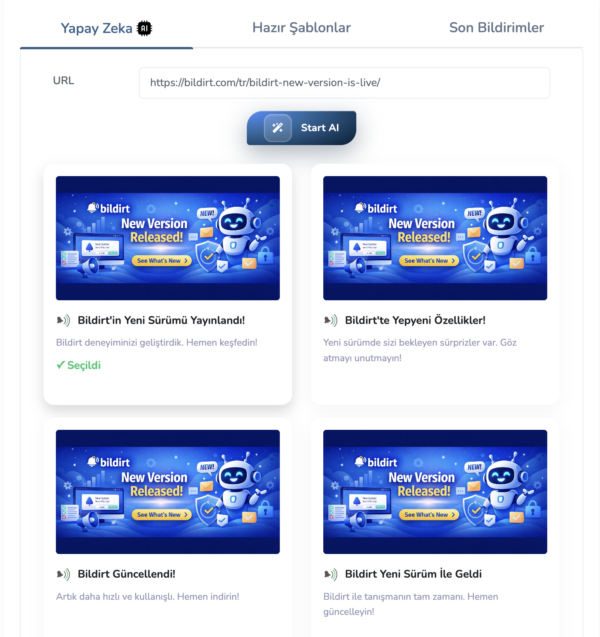
The AI Recommendation Engine automatically generates notification titles and descriptions based on a given URL.
To use this method:
- Click the Send New Notification button
- Select AI Recommendation Engine
- Enter the URL of the page you want to create a notification for
- Click the Start AI button
The AI generates 5–6 different notification suggestions tailored to the provided URL.
When you select one of these suggestions, you will be automatically redirected to the notification creation screen with the fields pre-filled by AI.
You can edit if needed, set scheduling options, and send the notification.
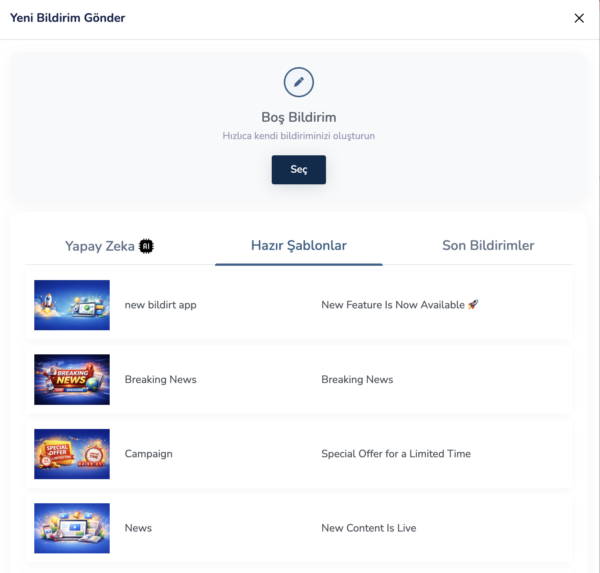
Sending Notifications with Templates
Templates allow you to quickly reuse previously created notification structures.
To use this method:
- Click the Send New Notification button
- Select Templates
- Choose one of the listed templates
You will be redirected to the notification creation screen with the selected template, and you can complete the sending process.
Sending via Recently Sent Notifications
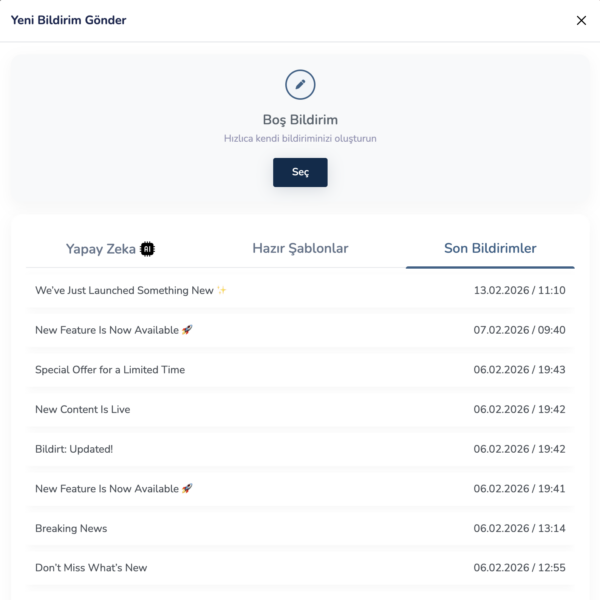
The Recently Sent Notifications option allows you to quickly resend previously sent notifications.
To use this method:
- Click the Send New Notification button
- Select Recent Notifications
- Choose a notification from the list
This method is ideal for resending similar content.
Next Step
After learning how to send notifications, you may want to schedule them for future dates and times or automate them.
In the next section, we will cover Scheduling & Automation.